

What a Screen Reader Actually Sees on Your Agency's PDFs

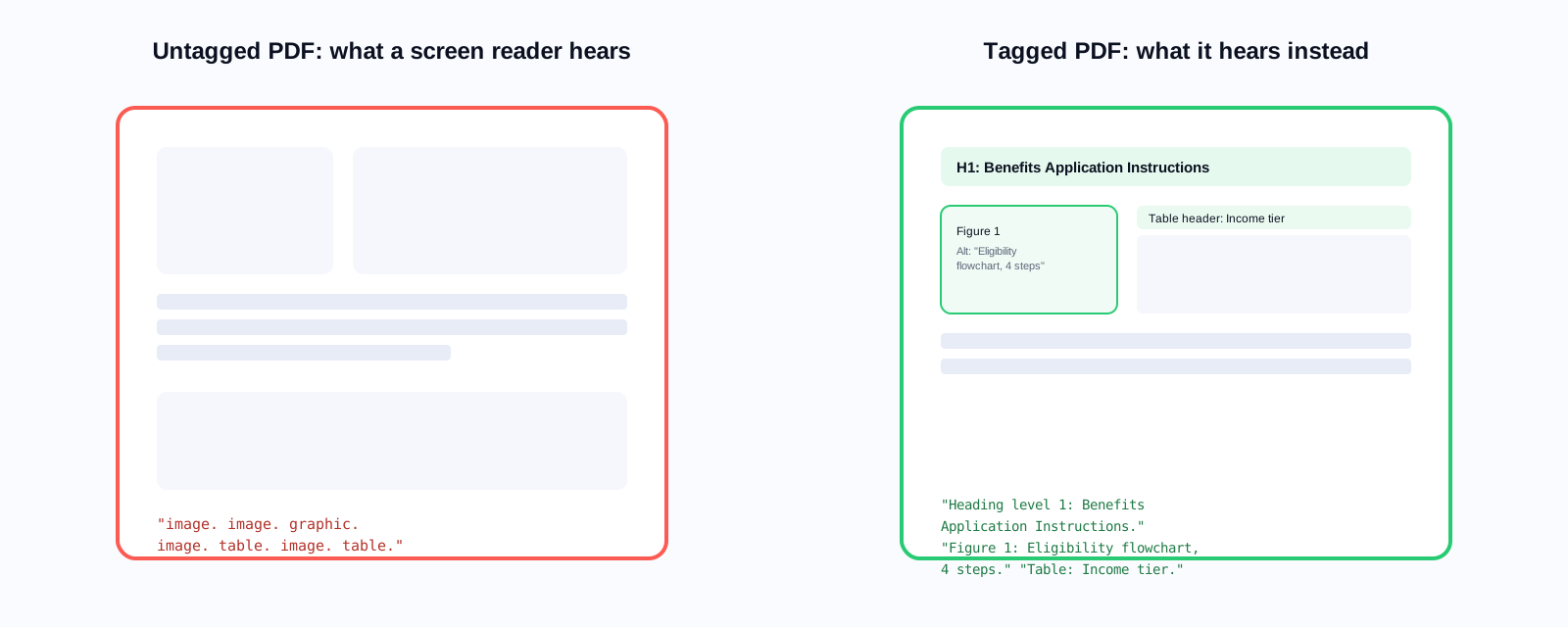
Run JAWS or NVDA on the average government PDF and listen to what happens. If the document was scanned and never tagged: 'image image image image image image image image image'. If it was exported from Word but the Word file used no heading styles: a stream of text read in the order it appears in the file, which may be: logo text, page header, page number, footnote, table of contents entry, body paragraph, in that sequence, because that is the order the elements were placed in the layout, not the order a human would read them.
A sighted user reading a PDF skips over the logo, ignores the header, and starts reading from the top of the content. A screen reader cannot skip anything unless the document has been tagged to indicate what each element is, where headings are, what is decorative, what the reading order should be. Without tags, it reads everything, in document layer order, which bears no reliable relationship to visual order.
The Four Most Common Government PDF Failures
1. Scanned Image PDFs with No Text Layer
Before digital document creation was standard, governments scanned paper documents to create archives. Many of those scans are still in service as active documents. A scanned PDF is a picture of text. There is no machine-readable text in the file. Screen readers announce it as a series of images because that is what it is. Optical character recognition (OCR) converts the image to text; tagging then gives that text structure. Without both steps, the document is completely inaccessible to screen reader users.
Agencies with large scanned archives often discover during an accessibility audit that 20–40% of their PDFs are scanned images. These require OCR and full structural tagging. Without AI assistance, each one takes 30–60 minutes of specialist time. An agency with 3,000 scanned PDFs and no AI tooling has 1,500–3,000 hours of remediation work ahead of it.
2. Untagged Native PDFs
A PDF exported from Word, InDesign, or another authoring tool may contain machine-readable text but have no structural tags: no headings, no reading order, no identified figures, no table structure. Screen readers receive the text but cannot navigate it. Long documents without heading structure are effectively unusable with a screen reader: there is no way to jump to the section you need, scan the content, or understand the document hierarchy.
This is the most common failure type. Most government PDFs were created in Word or similar tools, exported to PDF, and never had accessibility checked. The source file may have used visual formatting (bold, larger font) to indicate headings without applying actual heading styles. The PDF inherits the visual appearance but not the structural markup. A screen reader sees bold text, not a heading.
3. Missing or Inadequate Alt Text
WCAG 1.1.1 requires that all non-text content has a text alternative that serves the same purpose. For government documents, non-text content includes charts showing budget data, maps showing district boundaries, diagrams showing organisational structure, and photos that carry informational weight. When these images have no alt text, a screen reader announces 'image' or reads the filename.
A county annual report with a chart showing 'Year-over-Year Budget Allocation by Department' that has no alt text is hiding that information from blind readers. The visual reader sees the data. The screen reader user hears 'image'. Not even 'figure: year-over-year budget allocation chart'. Just 'image'.
4. Inaccessible Tables
Government documents are full of tables: fee schedules, permit requirements, eligibility criteria, rate charts. A sighted user navigates a table visually: they see the header row, understand the column labels, and read across each row with that context. A screen reader navigates a table cell by cell, and it needs to know which cells are headers, in which direction (row or column), to maintain context.
An untagged table in a PDF is read as a stream of text with no row or column context. A fee schedule that reads 'Service Type, Small Business, Large Business, Government, Residential, Basic Permit, $45, $120, $80, $35, Complex Permit, $180, $350, $220, $95' makes no sense without knowing that 'Service Type', 'Small Business', 'Large Business', 'Government', and 'Residential' are column headers. With proper table tagging, a screen reader user can navigate by row and column and maintain context.
Test it yourself
Download a PDF from your agency's website. Open it in Adobe Acrobat. Go to View, Read Out Loud, Read This Page Only. Listen to what happens. Then navigate to Tools, Accessibility, Accessibility Check. Look at how many failures the automated checker finds. This is what your residents with disabilities experience every time they open that document.
The Volume Problem
The reason government PDF accessibility has lagged web accessibility is simple: volume. A 20-page website can be manually reviewed and remediated in a few weeks. A 20,000-document PDF archive cannot. Manual remediation at even 20 minutes per document, for simple, well-structured native PDFs with minor tagging issues, is 6,667 hours of specialist labor. At $75 per hour for an accessibility specialist, that is $500,000 in labor. For a full archive with complex and scanned documents, the number is multiples of that.
This is why so many agencies know they have a PDF accessibility problem and haven't fixed it. It is not negligence. It is a genuine resource problem that no amount of dedication can solve at manual-remediation rates. DOJ's extension of the ADA Title II deadline to 2027 bought agencies a year, not a fix; at manual-remediation speed, most large PDF backlogs still won't clear before the new date arrives.
What AI-Assisted Remediation Changes
ADA Audit tools analyze document structure, infer heading hierarchy from visual formatting cues (font size, weight, position), generate contextually appropriate alt text for images and charts, reconstruct logical reading order, and tag tables with header associations. For a native PDF with standard structure, this process takes seconds rather than 20 minutes.
The accuracy is not perfect for every document type. Charts with complex data require human review of AI-generated alt text to confirm accuracy. Documents with unusual layouts may require manual correction of reading order. But AI handles 80–90% of the remediation task on well-structured documents, leaving human reviewers to address the specific elements that require judgment rather than spending their time on mechanical tagging.
73%
of government PDFs fail automated accessibility checks
20–30 min
manual remediation time per document
80–90%
of remediation tasks automated by AI for well-structured PDFs
Seconds
processing time per document with AI remediation at scale
Who This Is About
A blind veteran navigates to the VA benefits guide to understand what he qualifies for. A screen reader user with low vision tries to fill out a school district special education referral form. A Deaf individual using a screen reader looks for a local government agency's accessible transportation services application. These are not edge cases. 1 in 4 US adults lives with a disability. Screen reader users are not a small niche. They are a substantial, legally protected population that relies on government services.
When an agency's PDFs are inaccessible, it is not just a compliance violation. It is a failure to serve the residents who most need those services and who have the least recourse when they can't access them. The DOJ enforcement action is the downstream consequence. The upstream reality is people who can't get the information they need from a government that is obligated to provide it.
Related reading
Next step
Start with your 20 most-downloaded PDFs. Run Keyspider's free AI PDF Audit Tool on them. The report tells you which ones fail, which failures are most severe, and which ones AI can remediate automatically versus which need human review. That is 20 documents assessed in 10 minutes, not 7 hours.
Book a demo and we'll run ADA Audit against a sample of your PDF archive live.
Ready to see it in action?
Book a demo and we'll configure Keyspider on a live sample of your content, within 48 hours.
Book a Demo