

PDF to Drupal: Turn Document Libraries Into Accessible, Structured Content
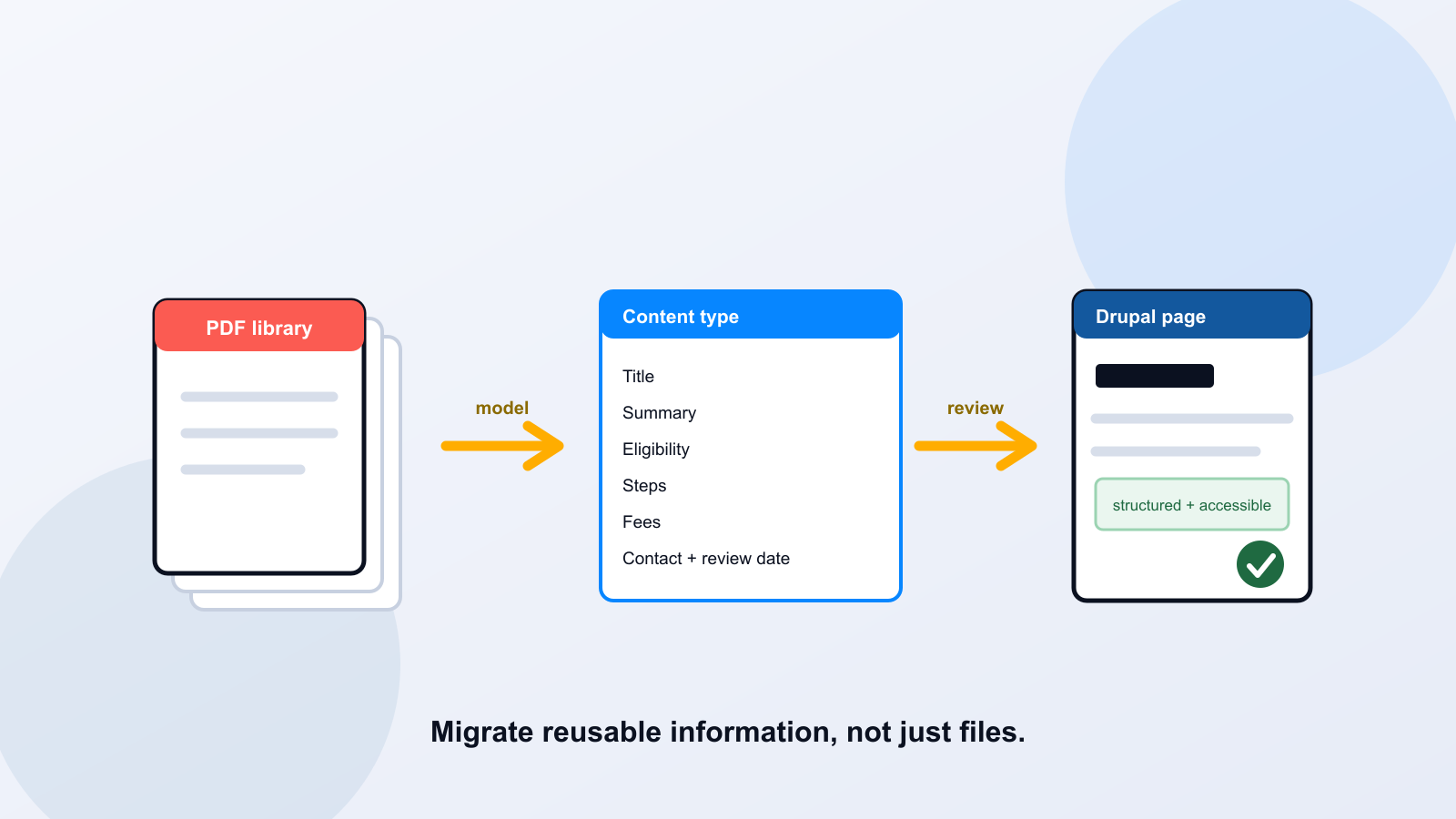
A thousand PDFs do not need a thousand unstructured Drupal pages. The opportunity in a Drupal migration is not just accessibility; it is turning flat documents into reusable, structured information that your site can present, filter, and maintain. That means modeling content types around resident tasks, importing into moderated drafts rather than publishing extraction directly, and verifying the rendered pages against WCAG 2.1 Level AA. Here is how to plan the migration as architecture, not a bulk file dump.
Key takeaways
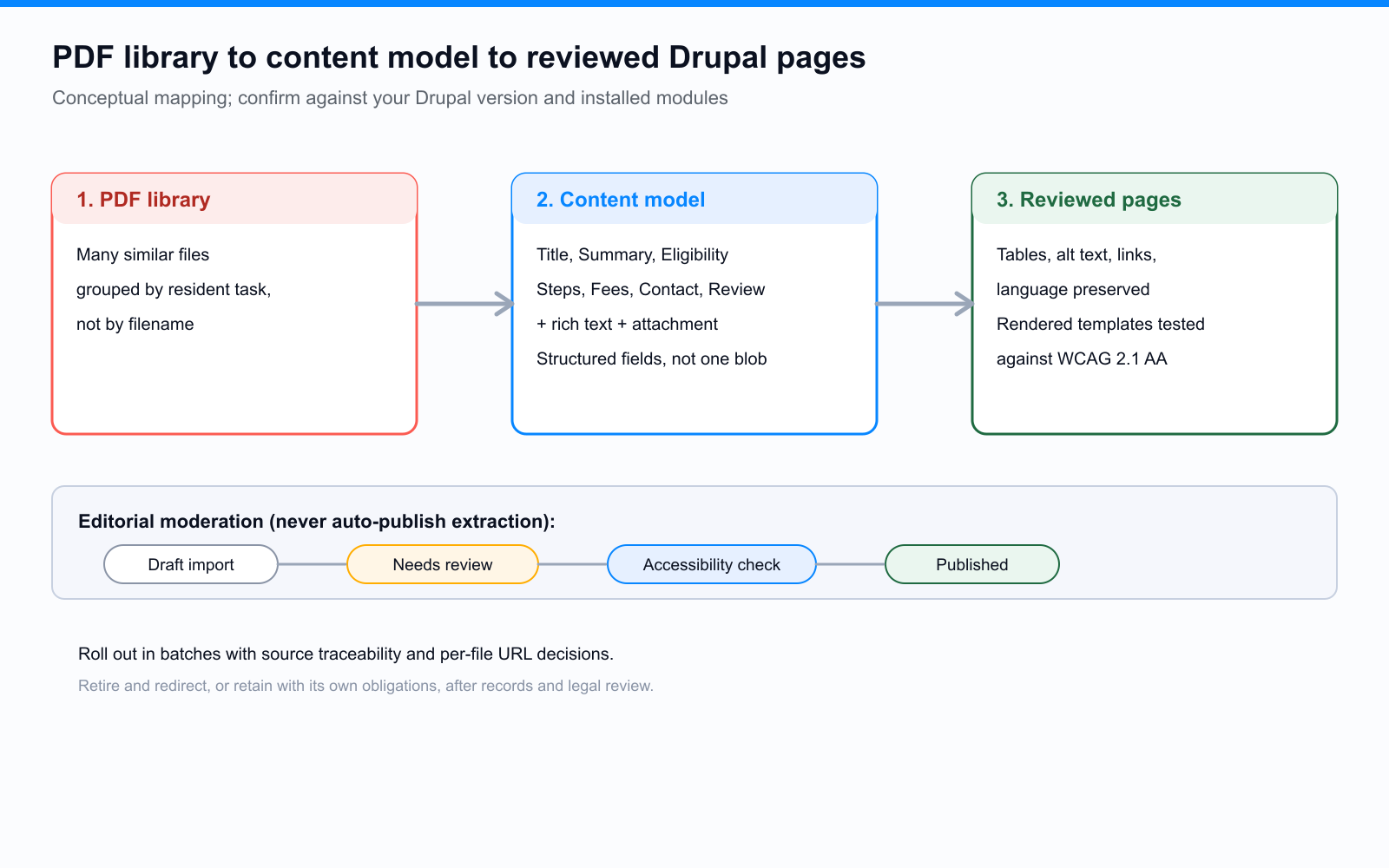
Model content types by resident task, not by PDF filename. Separate structured fields from rich text and attachments. Import to drafts with editorial moderation and human approval; never auto-publish AI extraction. Verify the rendered templates and complete tasks, not just the imported body, against WCAG 2.1 AA.
Choose Content Types Based on Resident Tasks, Not PDF Filenames
The filename is an accident of history; the resident task is what matters. Before modeling anything, ask what people are trying to do with each document: apply for a permit, check eligibility, find a meeting date, understand a policy. Group documents by task and you will usually find a handful of content types hiding inside a thousand files, a Service page, a Form guide, a Meeting record, a Policy. Modeling by task gives you pages that are consistent, filterable, and maintainable. Modeling by filename gives you a thousand one-off pages that are just PDFs with different clothes.
Map Source Content Into Titles, Summaries, Body, Service Details, and Owners
Once you have content types, map each document's content into real fields. A good model pulls the task-critical facts out of the prose and into structured fields that templates render consistently and editors maintain safely. Where the structural conversion is the bottleneck, PDF to Page rebuilds PDF content as native Drupal markup on Drupal 10 and 11, leaving your team the content modeling and the editorial review.
A sample field mapping for a fictional permit guide, illustrative and conceptual until implemented and tested on your Drupal version: Title (Fence Permit); Summary (one plain-language sentence); Eligibility (structured list); Steps (ordered list); Fees (structured values, not a pasted image of a table); Contact (department and phone); Review date (when the content was last confirmed correct). The downloadable original, if retained, becomes an attachment field, not the page's only content.
Separate Structured Fields From Rich-Text Sections and Attachments
Keep the three kinds of content distinct. Structured fields hold the facts a template should control, fees, dates, eligibility, so they render consistently and can be updated in one place. Rich-text sections hold genuine prose that needs formatting, and should use the editor's semantic styles rather than manual bold-as-heading. Attachments hold the retained original file when one is needed. Collapsing everything into a single rich-text blob recreates the PDF problem inside Drupal: a wall of formatted text that is hard to maintain and easy to break. Structure is what makes the content reusable and the accessibility durable.
Use Draft Imports and Editorial Moderation; Verify Installed Capabilities First
Import into unpublished drafts under content moderation, never straight to live. Set up a moderation workflow with real states, draft, needs review, published, so a human approves every page before residents see it, and so you can roll back. Confirm which Drupal capabilities and modules are actually installed on your site before you design around them; do not assume a module API, a one-click importer, or an integration that your build does not have. Verify first, then design the import to fit the platform you really run, on your actual Drupal version.
Preserve Tables, Image Meaning, Links, and Language Information
Migration is where meaning gets lost if you are not careful. Tables must keep their header relationships, not become positioned text. Images that carry information need contextual alternative text, and a media-library label is not the same thing: a filename or a short caption in the media library does not prove the rendered page exposes appropriate alt text, so check the output. Links need descriptive text. The page language has to be set so a screen reader pronounces content correctly. Each of these is a WCAG 2.1 success criterion, and each is easy to drop in a bulk import if no one verifies the rendered result.
Test Rendered Templates, Components, Navigation, and Complete Tasks
Accessibility lives in what Drupal renders, not in the raw field values. Test the actual templates and components: how a Service page theme outputs your structured fields, how Layout Builder components render, how the main navigation and any faceted search behave. Then test complete resident tasks end to end, finding a permit, reading the steps, reaching the contact, with a keyboard and a screen reader, at 200 percent zoom and in reflow. A field can hold perfect content that an inaccessible template renders badly. The whole-page conformance requirement in WCAG 2.1 is about exactly this rendered experience.
Roll Out in Batches With Source Traceability, URL Decisions, and Review Dates
Migrate in reviewed batches, not one giant switch. For each batch, keep source traceability, which PDF a page came from, so you can check fidelity and answer questions later. Decide each old URL's fate deliberately: redirect a retired file to its new page, or retain the file with its own accessibility obligations if records retention or external links require it, after records and legal review rather than unilaterally declaring files archived or deleting records. Give every page a review date and an owner. This structural, governed migration is where PDF to Page fits for Drupal: it converts PDF content into native Drupal content, Layout Builder components or CKEditor 5 markup on Drupal 10 and 11, rebuilding headings, lists, tables, and images and validating against WCAG 2.1 and 2.2 AA before publishing, with the original retained for download. It accelerates the conversion inside a reviewed workflow; the content modeling, human approval, and whole-page testing remain your team's.
Questions Readers Ask
Should each PDF become its own Drupal page?
Usually not one-to-one. Model content types around resident tasks and you will consolidate many similar PDFs into consistent, maintainable pages. A thousand unstructured pages is just the PDF backlog in a new system.
Can we auto-publish imported content?
No. Import to drafts under content moderation and require human review before publishing, especially for AI-assisted extraction. Editorial approval, role permissions, and rollback protect residents from inaccurate fees, dates, or instructions going live unchecked.
Does a media-library alt-text field make our images accessible?
Not on its own. A media-library label does not prove the rendered page exposes appropriate, contextual alternative text. Write alt text for the context in which the image is used, and verify what the published template actually outputs.
What do we do with the original PDF files?
Decide per document after records and legal review. Retire and redirect the file when the page replaces it, or retain it as an attachment with its own accessibility obligations. Do not declare files archived or delete records without that review.
Related reading
Start with a content-model workshop and a small, reviewed migration batch rather than a bulk import. Want to pressure-test a content model against your document library? Book a working session.
Ready to see it in action?
Book a demo and we'll configure Keyspider on a live sample of your content, within 48 hours.
Book a Demo