

From PDF to WordPress: Build Accessible Pages, Not Just Pasted Text
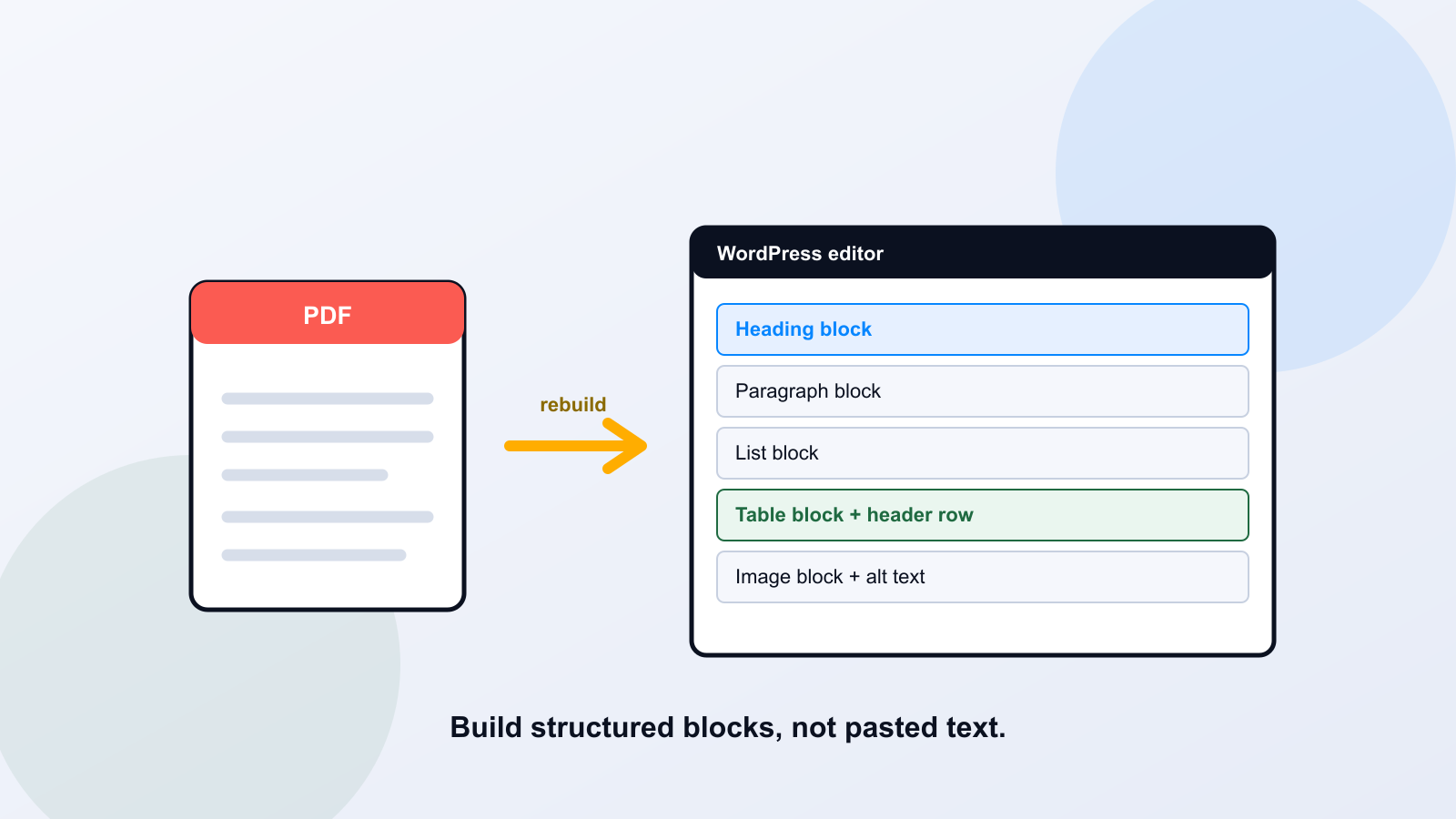
Pasting a PDF's text into a WordPress page is not the same as rebuilding it as structured content. The file disappears, but the barriers can move straight into the page: a heading that is only bold text, a table made of tabs and spaces, an image with no description. An accessible WordPress page uses real blocks with real semantics, and it is verified against WCAG 2.1 Level AA across the whole page, not just the body you edited. Here is how to do the rebuild properly.
Key takeaways
Use semantic blocks, not pasted text. Rebuild tables and forms rather than copying their visual layout. WordPress, a theme, a plugin, or Gutenberg does not guarantee conformance on its own. Test the whole page, theme and navigation included, and check records retention before you change or remove a PDF's URL.
Select the Right PDF and Confirm the Authoritative Source
Start with a document residents actually use, and confirm you have the authoritative, current version before you rebuild it. The worst outcome of a migration is republishing a superseded fee schedule or an expired form as if it were current. Find the source of truth, the office that owns the document, and the date it was last correct. If two versions are circulating, resolve which one is official first. Accessibility work on the wrong content just makes the wrong content easier to reach.
Extract Text or Use OCR, Then Verify Every Critical Fact
If the PDF has a real text layer, extract it. If it is a scan, optical character recognition can produce text, but OCR introduces errors exactly where they hurt: fees, dates, eligibility thresholds, phone numbers. A misread "March 15" or "$85" that looks plausible is worse than an obvious blank. After extraction, verify every critical value against the original document, line by line for anything a resident will act on. OCR produces characters; it does not establish accuracy or accessible structure.
Map Content to Core Blocks
Rebuild the content with native blocks that carry meaning, and keep the same mapping visible to your editors so the next person does it the same way. For a large archive, PDF to Page produces this block structure automatically, rebuilding headings, lists, tables, and images as native Gutenberg or Classic HTML validated against WCAG 2.1 and 2.2 AA, which you still verify across the whole page.
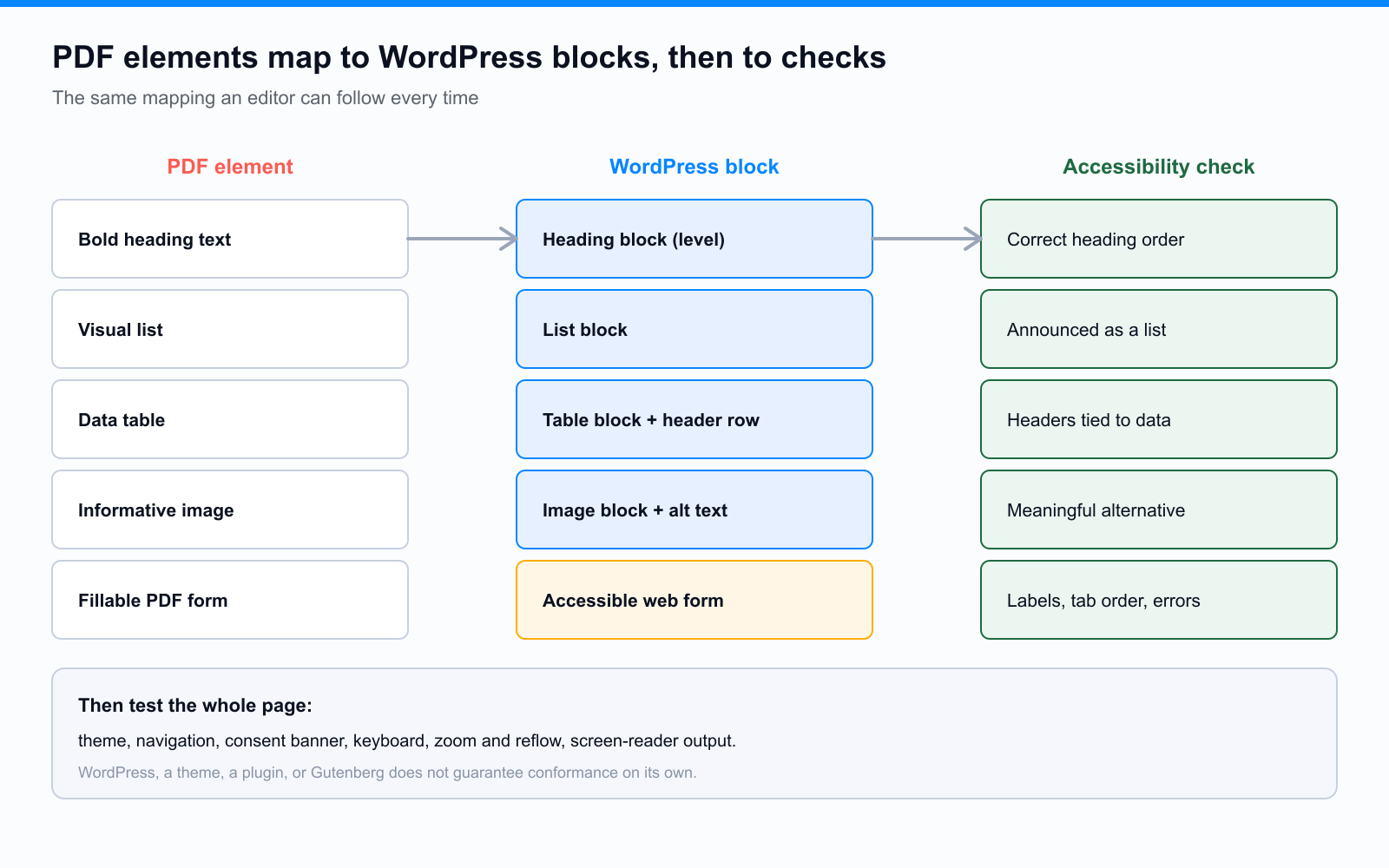
- PDF heading -> Heading block, with the correct heading level in order (no skipped levels).
- Body text -> Paragraph block. Do not fake headings with bold paragraphs.
- Visual list -> List block, so assistive technology announces the list and its length.
- Data table -> Table block with a header row; complex tables may need a reviewed custom solution.
- Informative image -> Image block with contextual alt text; decorative image -> marked decorative with empty alt.
- PDF form -> a separately designed accessible form workflow, not pasted questions.
One short HTML example
A pasted heading often lands as <p><strong>Fees</strong></p>. The accessible version is <h2>Fees</h2>, which a screen reader can navigate to and which keeps your heading outline intact. The visible text is identical; the structure is not. This shows the block mapping, not whole-page conformance.
Rebuild Tables and Forms Rather Than Copying Visual Layout
Tables and forms are where pasted content does the most damage. A table copied as positioned text has no header relationships, so a screen reader reads a column of numbers with no idea which is the fee and which is the deadline. Rebuild it as a real table with header cells. Forms are a bigger shift: a fillable PDF form is not accessible just because its questions are pasted onto a page. An accessible form needs real labeled fields, instructions, a logical tab order, error messages that say how to fix the problem, and keyboard operability. Design the form as a form, using an accessible form solution, rather than treating it as text.
Audit the Theme, Navigation, Plugins, and Responsive Presentation
A clean page body inside an inaccessible theme is still an inaccessible page. WordPress itself, your theme, your plugins, and Gutenberg do not guarantee conformance; they are tools that can be used accessibly or not. Check the header and footer, the main menu and any mega-menu, the search field, the cookie or consent banner, and the color contrast the theme applies to your text and links. Resize to 200 percent and to a narrow mobile width and confirm the content reflows without loss. A plugin that injects an inaccessible widget fails the page regardless of how good your content is.
Test Keyboard, Reading Order, Zoom, Reflow, and Screen-Reader Output
Verify the rendered page the way the people it is meant for will use it. Tab through the whole page with the keyboard alone and confirm you can reach every link and control in a logical order, with a visible focus indicator and no traps. Turn on a screen reader and listen to the reading order, the headings, the table announcements, and the image descriptions. Zoom and reflow, and check text spacing. Pair this manual pass with an automated checker, which catches mechanical gaps but cannot judge whether alt text is meaningful or a table's headers are correct. The success criteria behind these checks are defined in WCAG 2.1.
Publish With a Redirect or Approved Legacy-File Treatment and Editorial Ownership
Before you change or remove the old PDF's URL, check three things: records retention requirements, any outside sites or documents that link to the file, and whether users still need the original. If the PDF is retiring, set up a redirect from its URL to the new page so existing links and bookmarks keep working. If the file must stay available, treat it as a retained document with its own obligations rather than assuming the new page covers it. Then assign an editorial owner for the page so fees, dates, and instructions stay current. For teams doing this at volume, PDF to Page converts PDF content into native WordPress content, Gutenberg blocks or Classic HTML, rebuilding headings, lists, tables, and images and validating against WCAG 2.1 and 2.2 AA before publishing, with the original file kept downloadable. It handles the structural rebuild; the whole-page testing and editorial ownership above are still yours.
Questions Readers Ask
Does pasting a PDF into Gutenberg make an accessible page?
Not by itself. Pasting often produces bold paragraphs instead of headings and positioned text instead of tables. Rebuild the content with semantic blocks, then verify the whole page. Gutenberg can produce accessible output, but it does not guarantee it.
Can a WordPress accessibility plugin make our pages compliant?
No plugin makes a page compliant on its own. Plugins can help with testing or specific fixes, but conformance depends on the actual content, theme, and full page, verified with manual testing. Be wary of any tool that promises automatic or guaranteed compliance.
How do we handle a fillable PDF form in WordPress?
Rebuild it as an accessible web form with labeled fields, clear instructions, logical tab order, and error recovery, not as pasted questions. A form is an interactive process, so test it with a keyboard and a screen reader from first field to submission.
Should we delete the old PDF after publishing the page?
Check records retention, inbound links, and whether users still need the file before removing it. If you retire it, add a redirect to the new page. If you keep it, treat the retained PDF as having its own accessibility obligations.
Related reading
Pilot the workflow on one resident-facing guide: rebuild it with semantic blocks, test the whole page, and compare it to the old PDF. Want help scoping that pilot on your WordPress site? Book a working session.
Ready to see it in action?
Book a demo and we'll configure Keyspider on a live sample of your content, within 48 hours.
Book a Demo