

Accessible PDF Forms: Why a Fillable Form Can Block Residents
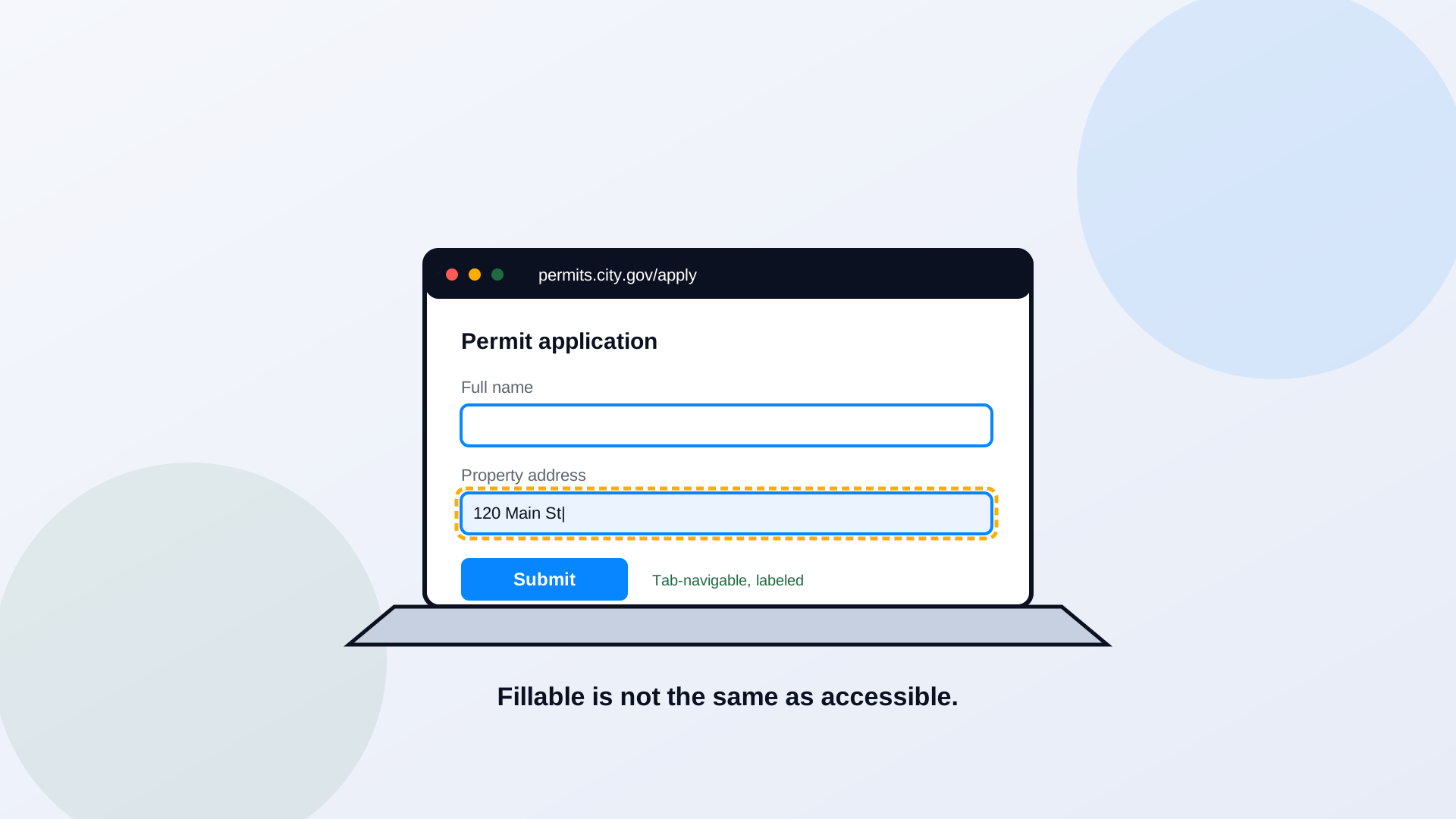
A form is the sharpest test of accessibility, because a form is not something a resident reads. It is something they have to complete, correctly, to get a service. A PDF form can look perfectly functional, with neat boxes and a submit button, and still be impossible for someone using a keyboard or a screen reader. The fields have no labels the software can announce. The tab order jumps around the page. An error message appears in red with no other signal. The form looks fillable. For a large group of residents, it is not.
The Cost of an Inaccessible Form
An inaccessible form does not fail quietly. It turns into a phone call, a visit to the office, a missed deadline, a service a resident could not obtain on their own. The permit does not get filed. The benefit application stalls. The complaint goes unrecorded. Every one of those is a person the law says you have to serve, blocked by a document you control. And because forms are the documents residents use to actually do something, they are usually both the highest-impact and the highest-risk files in your entire library, which is why remediation programs should put them first, as we argue in how to prioritize remediation at scale.
The Six Checks Every Accessible PDF Form Needs
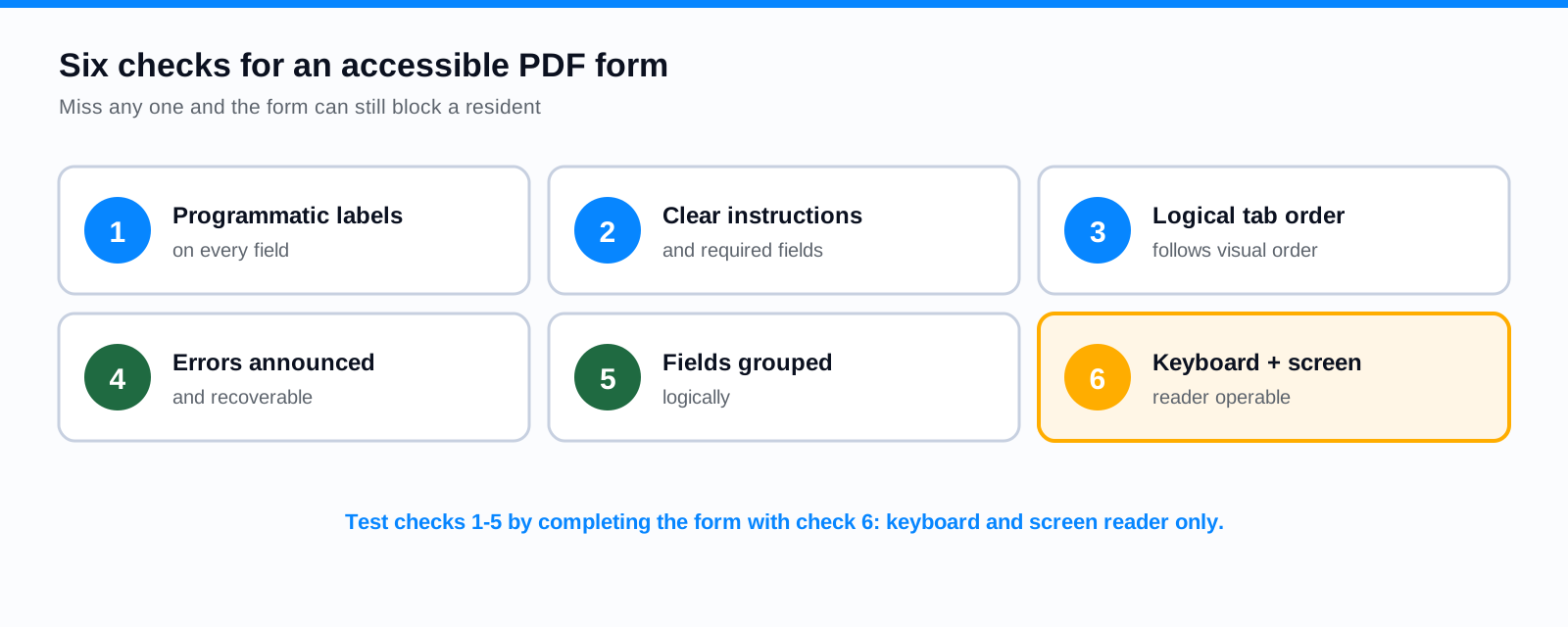
The six, in plain terms: every field carries a programmatic label a screen reader will read; instructions and required fields are stated clearly, not just implied by an asterisk; the tab order follows the visual order so keyboard users do not jump around; errors are announced and explain how to fix them; related fields are grouped logically, like a set of radio buttons; and the whole form is operable by keyboard and screen reader from first field to submit. Hit all six and the form works. Miss one and someone is stuck.
Labels Versus Visual Placeholders
The most common form failure is confusing a label with a placeholder. Faint gray text inside a field that says "First name" looks like a label, but it usually is not one the software can announce, and it disappears the moment someone starts typing. A screen reader reaching that field says "edit text" and nothing more. A real label is attached to the field programmatically, stays present, and is read every time the field gets focus. Visual placeholders are a design convenience; programmatic labels are what make the field usable. Every field needs the second kind, whatever you do about the first.
Required Fields, Validation, and Error Recovery
Required fields have to be marked in a way assistive technology conveys, not with a red asterisk alone, which means nothing to someone who cannot see the color. When a resident submits the form with a problem, the error has to be announced, has to identify which field is wrong, and has to say how to fix it. "Error" is not enough; "Date of birth must be in MM/DD/YYYY format" is. Error recovery is a WCAG requirement precisely because a form that rejects input without explaining why is a dead end for anyone who cannot scan the page for red boxes.
Tab Order and Reading Order
Keyboard users move through a form by pressing Tab, and the order in which focus moves has to match the order a person would fill the form out. When the tab order follows the underlying object order instead of the visual layout, focus can jump from the top of a column to the bottom of the page to a field three sections away. The resident loses their place, skips fields, and submits an incomplete form. Reading order, how a screen reader announces the surrounding text and instructions, has to be correct for the same reason. Both are invisible until someone navigates without a mouse, which is exactly why you have to test that way.
When to Replace a PDF Form With an Accessible Web Form
Here is the honest answer that a lot of PDF-remediation advice avoids: for most government forms, the right fix is not a better PDF. It is a web form. An accessible HTML form is responsive on a phone, works with every assistive technology by default when built correctly, can validate input in real time, and can feed your systems directly instead of producing a file someone has to re-key. Reserve the fillable PDF for the cases that genuinely need one, a document that must be printed and signed, a legal form with a fixed layout, and move the rest to the web. PDF to Page and your CMS forms are usually a better destination than a remediated PDF.
Testing With Keyboard-Only Navigation and a Screen Reader
No form is done until it has been tested the way the blocked residents use it. Put the mouse aside and complete the entire form with the keyboard: reach every field in a sensible order, fill it, trigger an error, recover from it, and submit. Then do it again with a screen reader running, listening for whether each field is labeled, whether required fields are announced, and whether errors make sense. This is the test that catches every failure above, and it is the one no automated checker performs. The broader QA method is in the checker versus screen reader guide.
Frequently Asked Questions
If a PDF form is fillable, is it accessible?
Not necessarily. Fillable means the fields accept input; accessible means a keyboard and screen reader user can complete and submit the form. A fillable form with unlabeled fields and a broken tab order fails for those users.
What is the single most common form accessibility failure?
Missing programmatic labels. Fields that look labeled with placeholder text but carry no real label are announced by a screen reader as "edit text," leaving the user with no idea what to enter.
Should we remediate PDF forms or replace them?
For most government forms, an accessible web form is the better long-term answer: more usable, mobile-friendly, and accessible by default. Keep the PDF form only when a fixed, printable, signable layout is genuinely required, and remediate those carefully.
How do we test a form for accessibility?
Complete it with the keyboard alone, then again with a screen reader, checking labels, required-field announcements, tab order, and error recovery. Pair that manual test with an automated check. Manual testing is what proves the form actually works.
Related reading
Want to know which of your forms block residents today? ADA Audit finds and assesses every form across your sites, and for the ones better served as a web form, PDF to Page rebuilds them as accessible HTML. Book a demo and we will test a sample with a keyboard and screen reader and show you exactly where they fail.
Ready to see it in action?
Book a demo and we'll configure Keyspider on a live sample of your content, within 48 hours.
Book a Demo