

How to Remediate a PDF for WCAG 2.1 AA: A Step-by-Step Guide
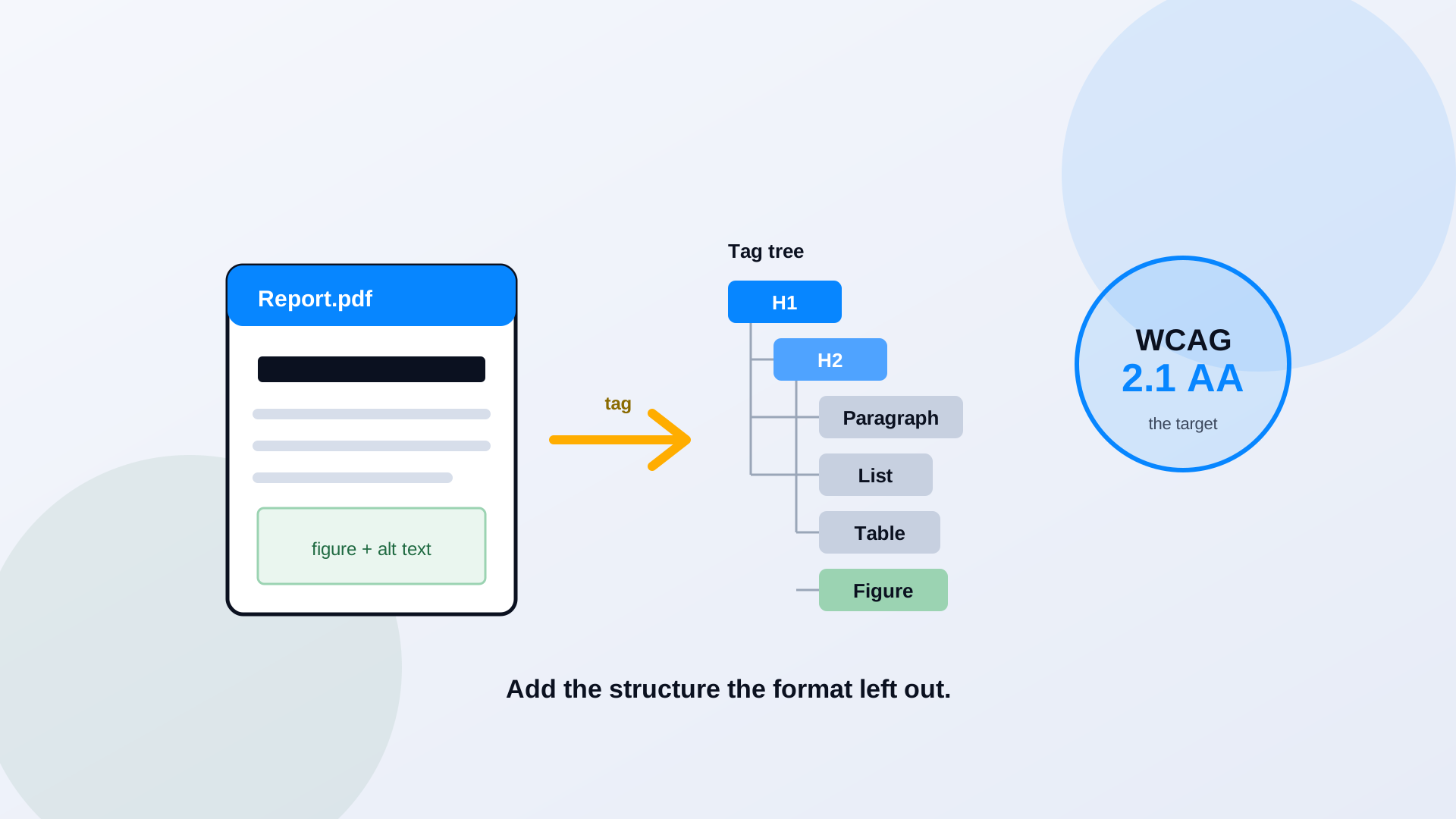
Most government PDFs were never built to be read by anything but a pair of eyes. Export a report from a word processor, scan a signed form, drop it on the site, done. That file can look perfect and still be unusable for someone navigating with a keyboard or a screen reader. Remediation is the work of adding the structure the format left out, so assistive technology can move through the document the way a sighted reader moves through the page. Here is the process, step by step, aimed at WCAG 2.1 Level AA.
What Makes a PDF Accessible?
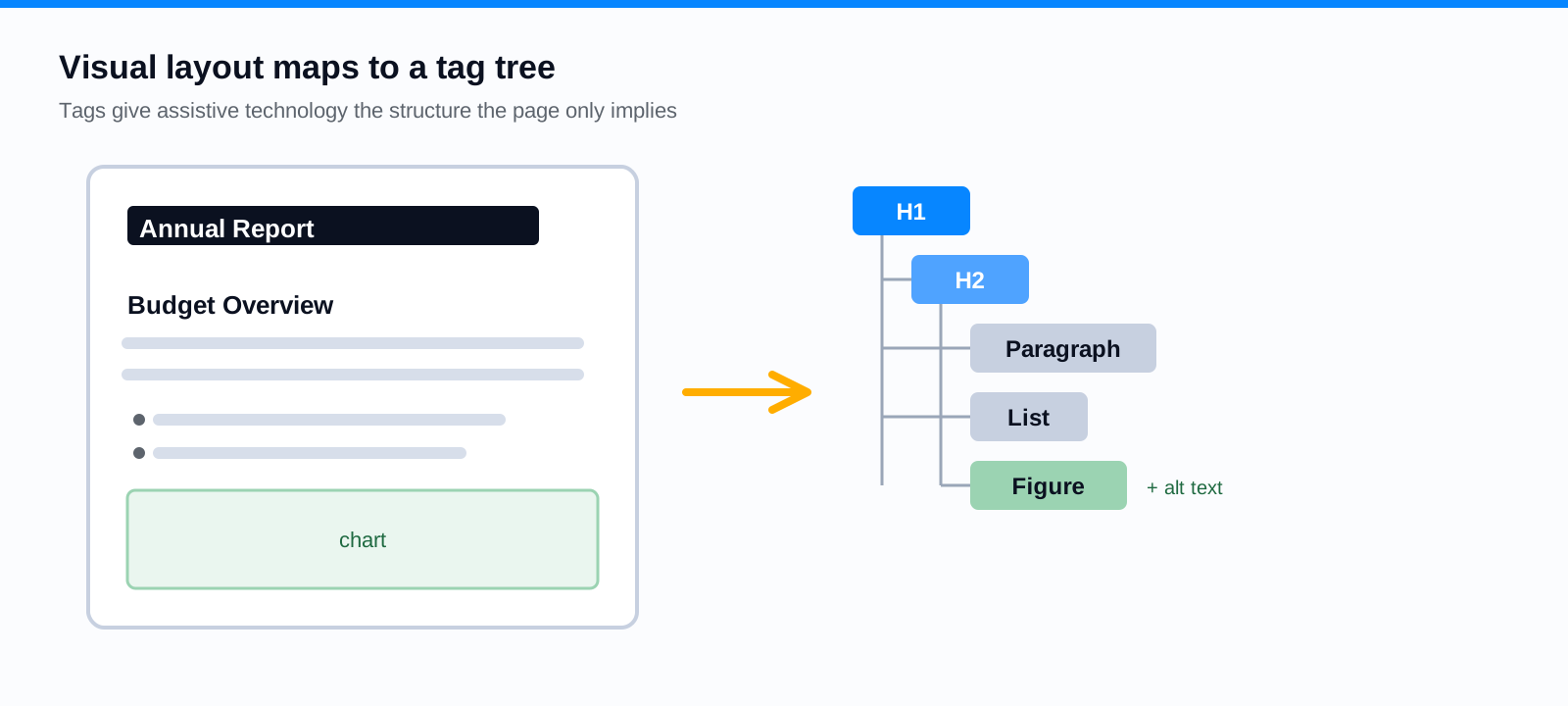
An accessible PDF carries a layer of information that has nothing to do with how the page looks. It has tags that name each piece of content, this is a heading, this is a list, this is a table cell. It has a defined reading order, so the content is announced in a sensible sequence rather than wherever the elements happen to sit on the canvas. It has text alternatives for images, a declared document language, a real title, and navigable structure. WCAG 2.1 AA is the conformance target; the PDF techniques published by the W3C are the specific methods for meeting it inside this format. PDF/UA is a related technical standard for PDF structure, and it overlaps heavily with WCAG, but the two are not identical, so treat WCAG 2.1 AA as the bar the ADA rule points to.
Step 1: Determine Whether the PDF Is Scanned or Text-Based
Before anything else, find out what you are working with. Try to select a line of text with your cursor. If you can, the document has a real text layer. If the whole page highlights as a single image, it is a scan, a picture of a document with no text underneath. Optical character recognition can add a text layer to a scan, but OCR output is only as good as the source, and it introduces its own errors: a smudged form field, a column of numbers read as one run of digits, a signature misread as letters. Run OCR when you must, then check the result against the original. OCR is step one of remediation, not the finish line. We cover its limits in depth in when OCR is not enough for PDF compliance.
Step 2: Run an Accessibility Check
Run the document through an automated accessibility checker to get a baseline. A checker is good at finding the mechanical gaps: a missing document title, no declared language, images with no alt text at all, a complete absence of tags. Clearing those flags is necessary work. What a checker cannot tell you is whether the structure is correct: whether the reading order actually makes sense, whether the alt text means anything, whether a table's headers connect to the right cells. A clean automated report is the start of validation, not proof of conformance. That gap is the whole subject of can a screen reader user actually use it.
Step 3: Add and Correct the PDF Tags
Tags are where accessibility lives. Each meaningful element needs the right tag: headings as heading tags in the correct level order, paragraphs as paragraphs, lists as lists, tables as tables, images as figures. Content that is purely decorative, a divider line, a background flourish, should be marked as an artifact so assistive technology skips it. The common failure here is cosmetic tagging: dropping a heading tag on text because it is big and bold, when it is not actually a heading. Tag for meaning, not for appearance. A screen reader user builds a mental model of the document from these tags, so a wrong tag is worse than a missing one.
Step 4: Fix Reading Order and Document Structure
Reading order is the sequence in which assistive technology announces content, and it does not always match what you see. A two-column newsletter can read straight across both columns, turning two articles into nonsense. A sidebar can interrupt a sentence. A caption can land before the image it describes. Open the document's reading order and walk it top to bottom, confirming that it follows the logical flow a person would read, not the order the elements were placed on the canvas. Multi-column layouts, pull quotes, and complex reports are where this step takes the most care.
Step 5: Add Alternative Text and Fix Images
Every image that carries meaning needs a text alternative that conveys the same information, not a label like "image" or "chart." A photo of a new fire station might be "Ribbon-cutting at the new Station 7 on Elm Street." A chart needs the point it makes, and often the underlying numbers, because the alt text is the only version a screen reader user gets. Decorative images, borders, spacers, stock flourishes, should be artifacts so they are skipped entirely. For complex figures like maps or org charts, a short alt text plus a longer description nearby in the document usually serves better than trying to cram everything into one attribute.
Step 6: Fix Tables, Links, Forms, and Navigation
Tables need real header cells, marked as headers and associated with their data, so a screen reader can announce "Fiscal Year 2025, Parks Budget" instead of reading a lone number with no context. Links need descriptive text; a page full of "click here" tells a screen reader user nothing about where each link goes. Forms need labeled fields, clear instructions, a logical tab order, and keyboard operability, which is a big enough topic that we gave it its own guide on accessible PDF forms. Finally, set the document title and language in the properties, and add bookmarks for anything long, so users can navigate without scrolling through forty pages.
Step 7: Validate Contrast and Other Presentation Requirements
WCAG 2.1 AA sets a contrast floor: 4.5 to 1 for normal text and 3 to 1 for large text, against the background. Light gray captions, color-coded table cells with no other cue, and text laid over a busy image are the usual offenders. Check that information is never carried by color alone, a required field marked only in red, a status shown only as a green dot, so that someone who cannot distinguish those colors still gets the message. Some presentation issues are the document's fault and some belong to the viewer software; fix the ones that live in the file.
Step 8: Test With Assistive Technology
This is the step automated tools cannot do for you, and the one most teams skip. Put the mouse down and tab through the document with the keyboard alone: can you reach every link, every form field, in a sensible order? Then turn on a screen reader and listen to the whole thing. Does the reading order hold up? Do the headings let you jump around? Does each image say something useful? Can you complete the form by voice and keyboard? A document can clear every automated flag and still fail this test, which is exactly why the test exists.
Common PDF Remediation Mistakes
- Treating OCR as accessibility. A searchable scan is not a tagged, structured document.
- Tagging for looks. Marking big text as a heading when it is not, or leaving real headings as plain paragraphs.
- Ignoring reading order. The tags can be right while the sequence is scrambled.
- Skipping tables. Unassociated headers turn a budget table into a wall of unlabeled numbers.
- Trusting the automated pass. A clean checker report is a baseline, not a conformance certificate.
The PDF Remediation Checklist
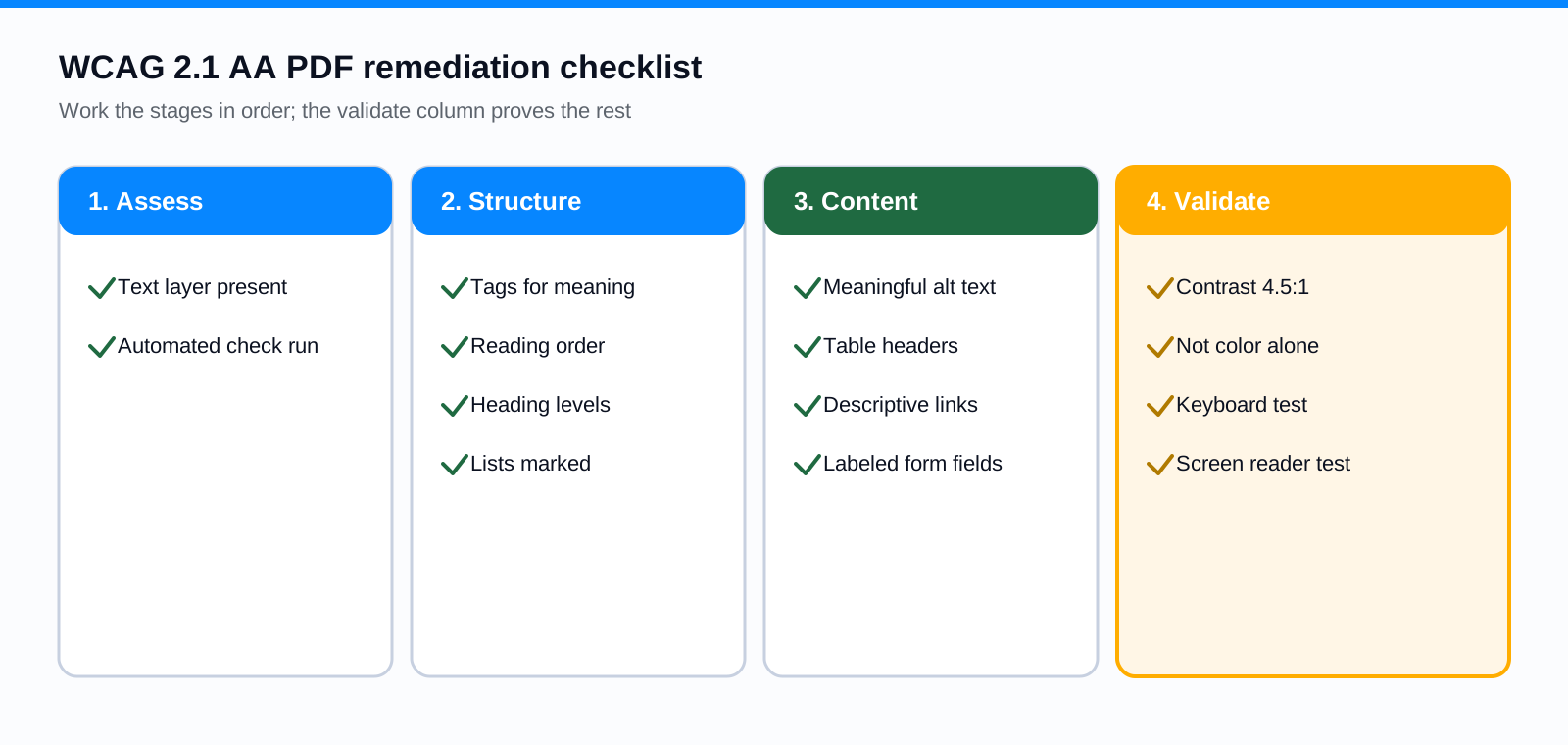
Keep a reusable version of this by your team. The ADA PDF remediation checklist in our resource library is a longer, printable form of the same stages, suitable for handing to a clerk or a contractor.
Frequently Asked Questions
Can a scanned PDF be made accessible?
Yes, but it takes more than OCR. OCR adds a text layer; you still have to tag the content, set reading order, add alt text, and handle tables and forms. For heavily scanned or complex documents, rebuilding from the source file or publishing as HTML is often faster and produces a better result.
Does Adobe Acrobat make a PDF accessible automatically?
No. Acrobat's auto-tag feature produces a first draft of the tag tree, and it is genuinely useful as a starting point, but it regularly misreads structure, reading order, and tables. Every auto-tagged document needs human review and correction before it meets WCAG 2.1 AA.
How do I test reading order?
Open the document's reading-order or tags view and step through the content in sequence, or navigate the whole document with a screen reader and listen for anything out of place. Multi-column and sidebar layouts are where reading order breaks most often.
Is PDF/UA the same as WCAG 2.1 AA?
They are closely related but not identical. PDF/UA is a technical standard specifically for PDF structure; WCAG 2.1 AA is the broader web standard the ADA Title II rule references. A well-built PDF/UA document meets most WCAG criteria, but treat WCAG 2.1 AA as the compliance target and use PDF/UA techniques to get there.
Related reading
Staring at an archive too big to hand-remediate? ADA Audit does the first-pass tagging, reading order, and draft alt text automatically and routes each file to a specialist for review, and PDF to Page rebuilds documents that work better as web pages into accessible HTML so they skip the tagging queue. Book a demo and we will show you both on your own files.
Ready to see it in action?
Book a demo and we'll configure Keyspider on a live sample of your content, within 48 hours.
Book a Demo