

Your PDF Passed the Checker. Can a Screen Reader Use It?
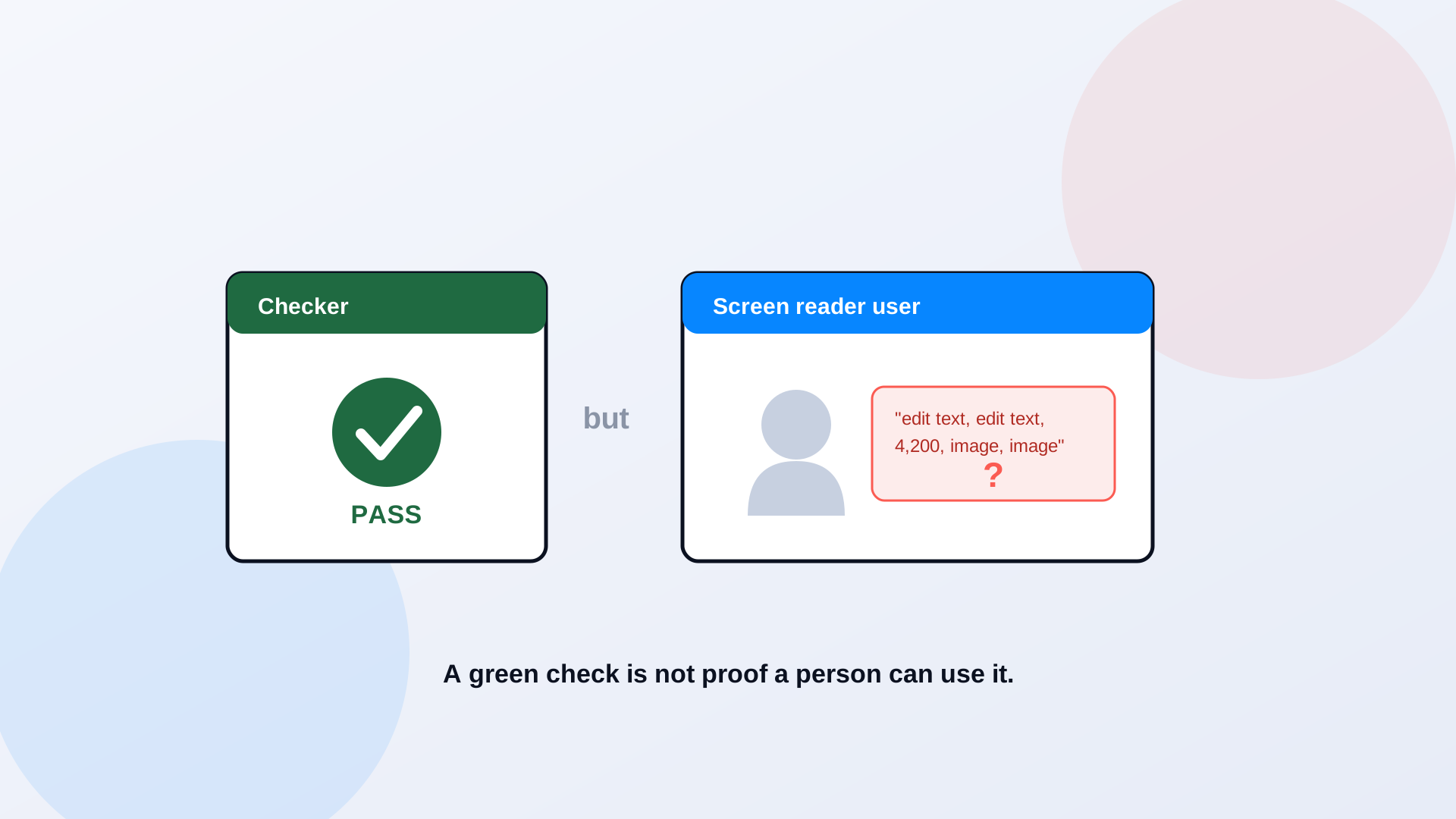
A green checkmark is reassuring, and that is exactly the problem. An automated PDF accessibility checker runs in seconds, flags the obvious gaps, and hands back a clean report that feels like proof. It is not proof. The checker confirmed the document has the mechanical parts of accessibility. Whether a person using a screen reader can actually read the budget table or complete the permit form is a different question, and it is one no automated tool can answer on its own.
What an Automated Accessibility Checker Can Tell You
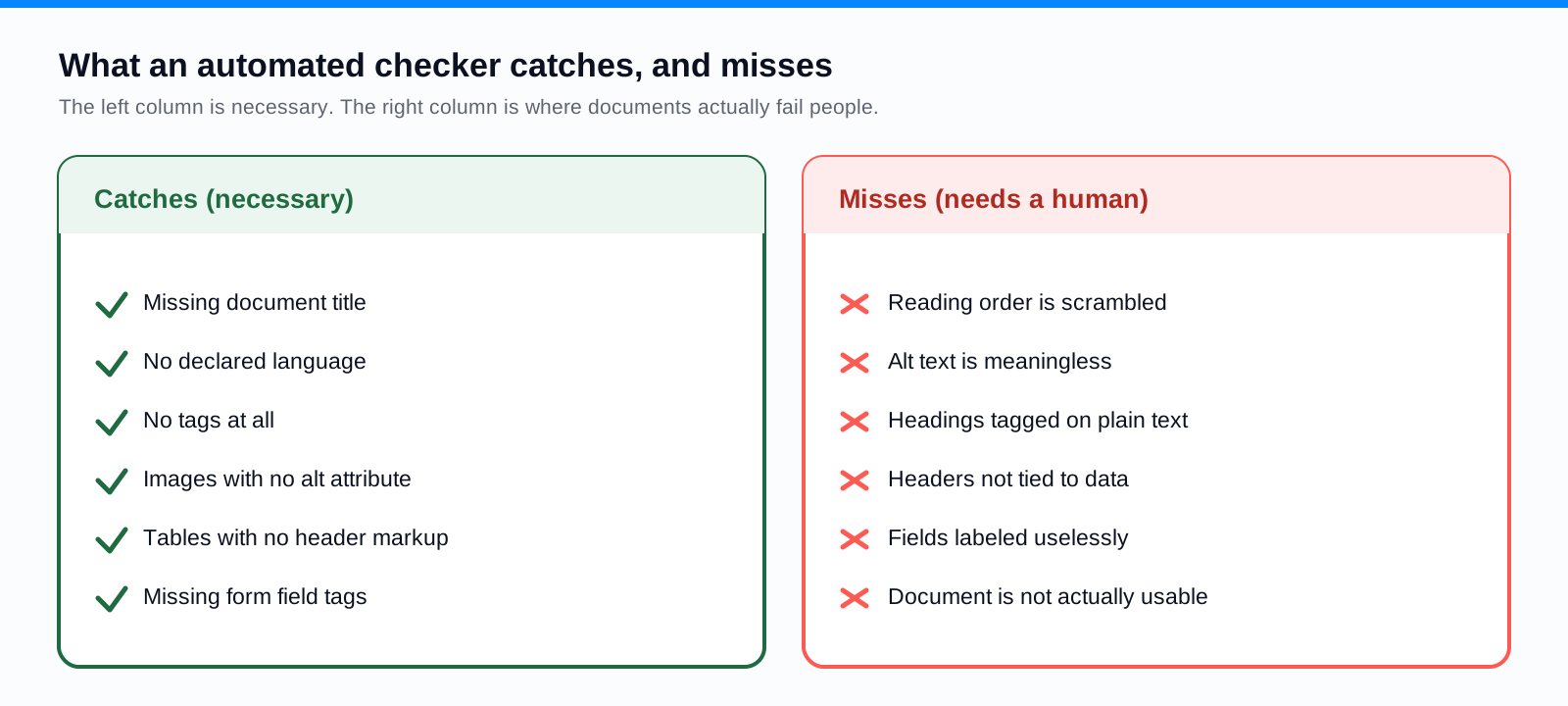
Automated checkers are genuinely useful, and any program running at scale should use them. They reliably catch the structural and metadata gaps a human would spend tedious hours finding: a missing document title, no declared language, images with no alt text attribute at all, a complete absence of tags, tables with no header markup. Run across thousands of files, a checker gives you a consistent baseline and a triage signal, this document is nowhere close, that one is almost there. For a large library, that consistency is worth a lot. The mistake is reading the output as a verdict rather than a starting point.
What an Automated Checker May Miss
The checker verifies that parts exist, not that they are correct. It can confirm an image has alt text; it cannot know the alt text says "image1.jpg" instead of describing the chart. It can confirm the document has tags; it cannot know a paragraph was tagged as a heading, or that the reading order runs across two columns and scrambles the meaning. It sees that a table has header cells; it does not check that they are associated with the right data. It sees form fields; it cannot tell whether they are labeled in a way a screen reader will announce usefully. Every one of these passes an automated scan and fails a real user.
Realistic Examples of Accessibility Failures
These are illustrative examples, not real customer documents, but every one of them is a pattern that clears an automated check and blocks a real person:
- A two-column staff report whose reading order runs straight across the page, so a screen reader interleaves two unrelated paragraphs into nonsense.
- A financial table where the header cells exist but are not associated with the data, so a user hears "4,200" with no idea it is the parks budget for fiscal year 2025.
- A permit form with fields that look labeled on screen but carry no programmatic label, so a screen reader announces "edit text, edit text, edit text."
- A scanned notice run through OCR that misread "March 15" as "March l5," now searchable and wrong.
- A chart that carries the entire point of the page, with alt text that reads "chart."
We walk through what this sounds like from the user's side in what screen readers actually see in government PDFs, and why a whole site can pass its audit while the document library fails in your website passed its audit, your PDFs did not.
What Screen Reader and Keyboard Testing Should Include
Manual testing is how you close the gap, and it does not require a specialist for every pass. A trained reviewer should check reading order by listening to the document top to bottom, headings and navigation by jumping between sections, links and lists for sense, tables for correct header announcements, forms and controls for labels and operability, and text alternatives for whether they convey the real information. Keyboard testing matters wherever the document is interactive: every field and control should be reachable and operable in a logical order without a mouse. This is the testing that catches the five failures above, and none of it shows up on an automated report.
A Practical PDF Accessibility QA Checklist
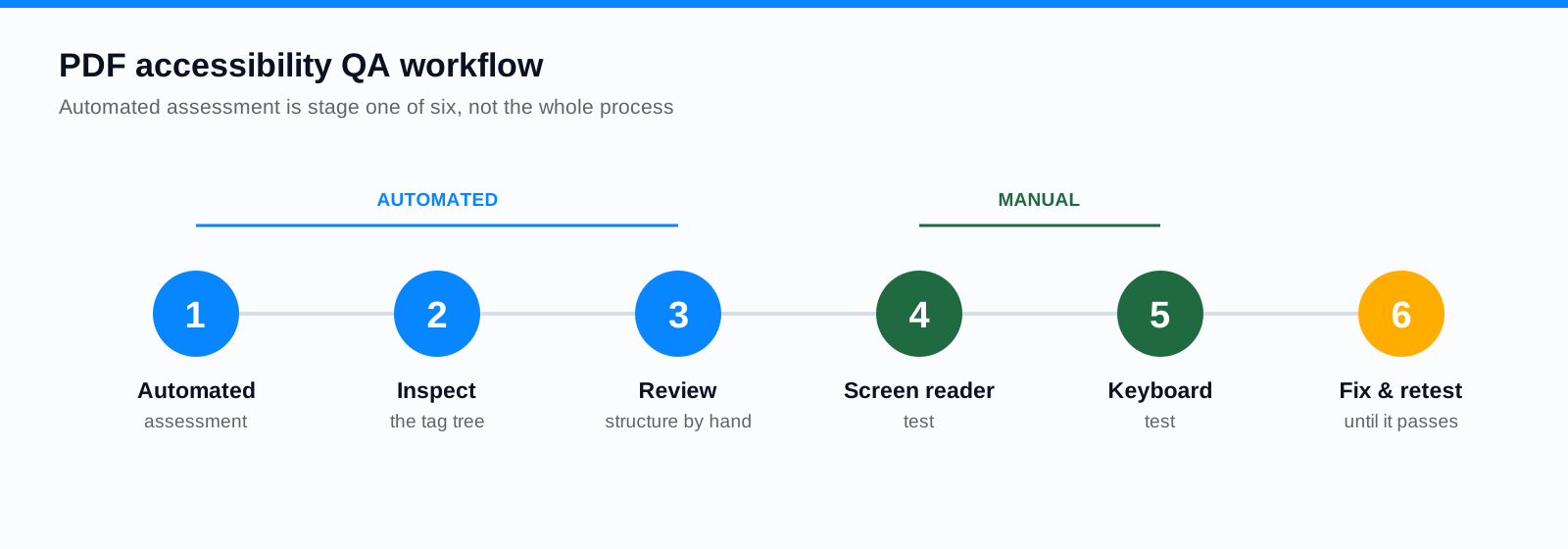
- 1Run the automated assessment and clear the mechanical flags.
- 2Inspect the tag tree to confirm elements are tagged for meaning, not appearance.
- 3Review the document structure and reading order by hand.
- 4Test with a screen reader, listening to the full document.
- 5Test with the keyboard alone, reaching every link and field in order.
- 6Record defects, remediate, and retest until the document passes the manual checks.
How to Create a Reliable Accessibility Validation Process
A dependable process is written down, not improvised per file. Define the acceptance criteria that a document must meet before it publishes. Document the test results so there is a record of what was checked and by whom. Assign ownership so every document has a person accountable for sign-off. Track defects so you can see whether your upstream authoring is improving. And retest corrected documents rather than assuming the fix worked. ADA Audit builds this in, pairing automated checks with specialist review instead of stopping at a green report, and PDF to Page avoids the question entirely for documents that become accessible web pages. The step-by-step remediation that feeds this process lives in how to remediate a PDF for WCAG 2.1 AA; forms, the highest-stakes case, get their own validation guide.
Frequently Asked Questions
Is an accessibility checker enough?
No. A checker is necessary for scale and consistency, but it verifies that accessibility features exist, not that they are correct or usable. Full WCAG 2.1 AA conformance requires manual review and assistive-technology testing on top of the automated pass.
Which PDF issues require manual review?
Reading order, the meaning of alt text, correct heading structure, table header associations, form field labels, and overall usability all need a human. These are judgment calls an automated tool cannot make.
Should every PDF be tested with a screen reader?
High-impact and complex documents, forms, tables, anything residents use for a service, should get a manual screen reader and keyboard test. Simple, low-impact documents can often rely on a thorough automated check plus a structural spot review, with manual testing sampled across the batch.
What is the difference between accessibility testing and legal certification?
Testing shows whether a document meets the WCAG 2.1 AA success criteria. It is not a legal certificate; no automated tool or single test establishes legal compliance. Testing is the evidence that your documents are usable, and that evidence is what a conformance claim rests on.
Related reading
Want to see which of your documents pass a checker but fail a screen reader? Book a demo and we will run a sample of your PDFs through both and show you the difference.
Ready to see it in action?
Book a demo and we'll configure Keyspider on a live sample of your content, within 48 hours.
Book a Demo